
Guide · Browser extension
The extension. The part that reads the page.
granny blocks the obvious at the network layer with no extension at all. The extension is what judges content: a movie on YouTube, an endless feed, a LinkedIn scroll. One folder, two toggles, five minutes.
Chrome, Brave, Edge, Arc
- 1.
In the granny menu choose Install browser extension… then Open browser settings. granny copies the extension to
~/Applications/granny-extensionand reveals it in Finder. - 2.
Open
chrome://extensions. Developer mode is off by default - it is the switch in the top-right corner.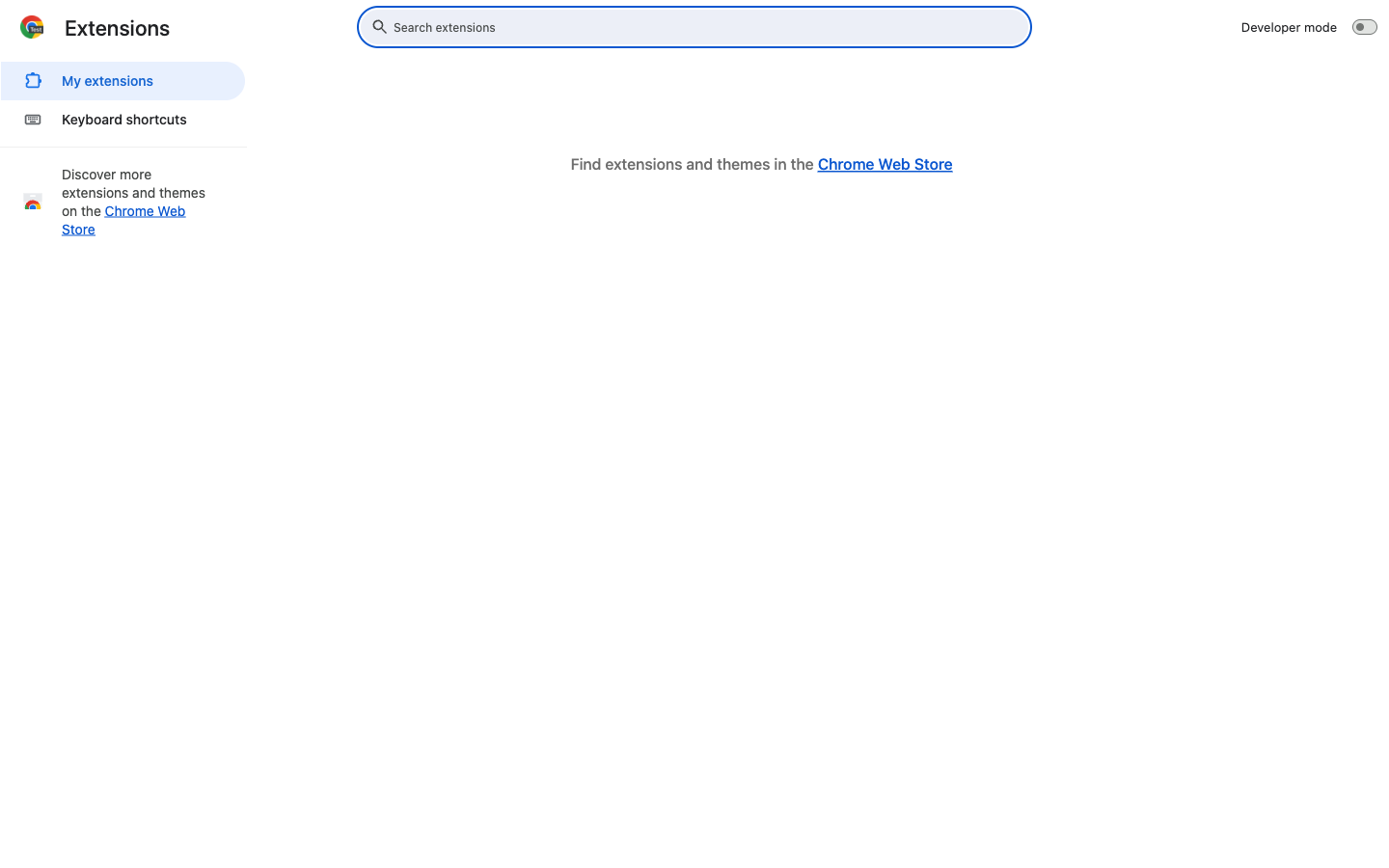
Developer mode starts off - 3.
Turn on Developer mode.
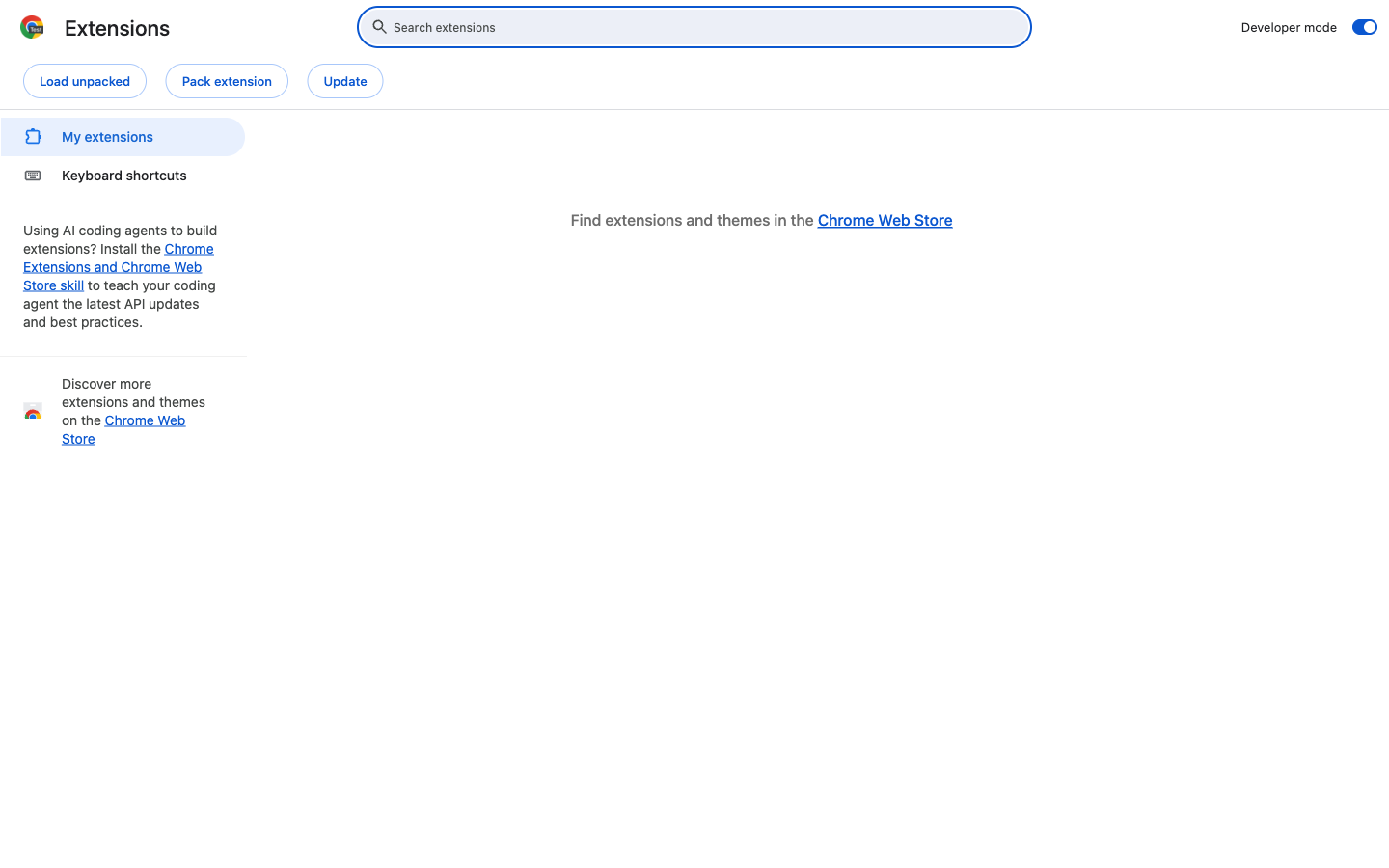
Developer mode on - 4.
Click Load unpacked and pick
~/Applications/granny-extension.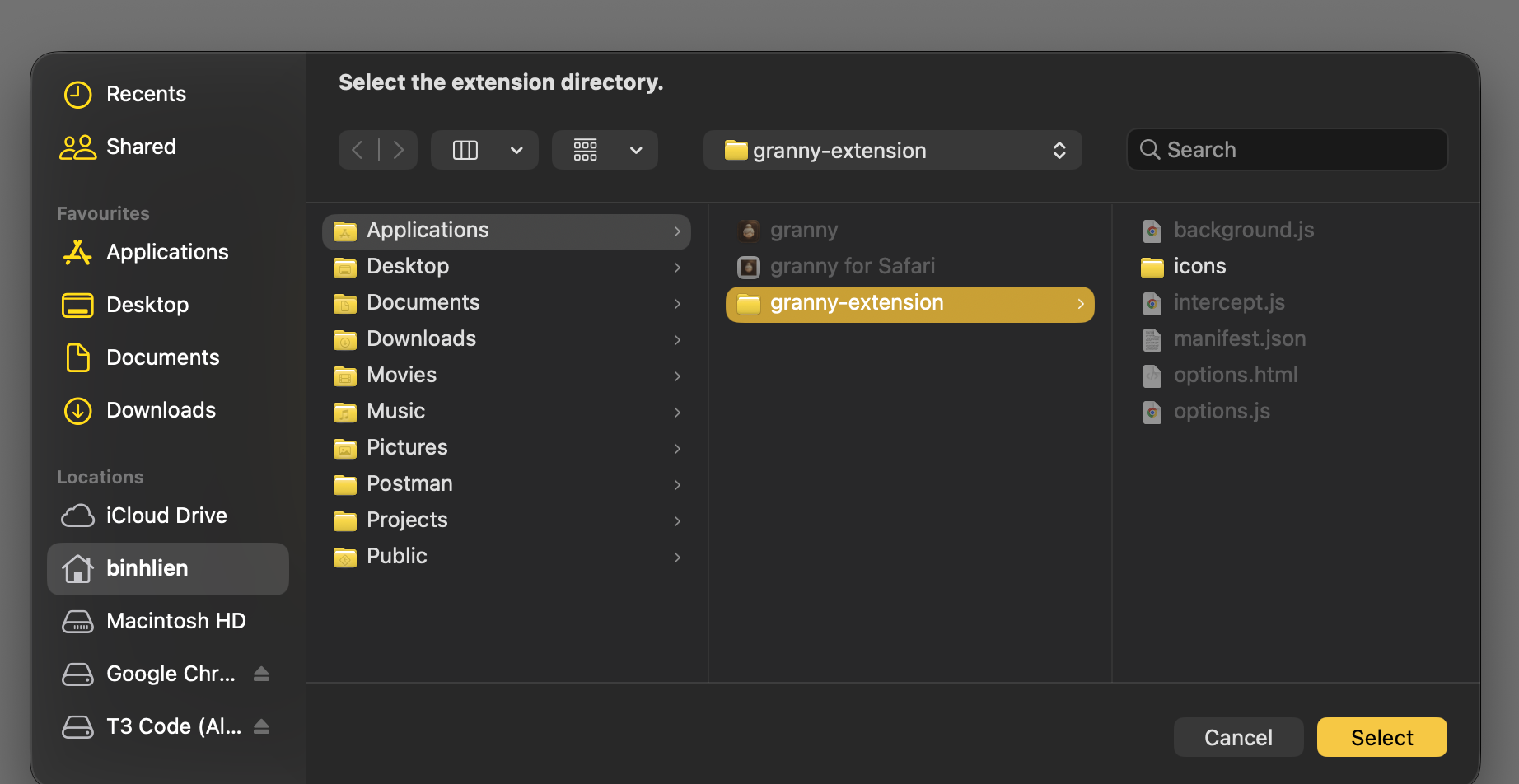
Pick the granny-extension folder - 5.
granny appears in the list, switched on. Every navigation goes through granny; work first, play after.
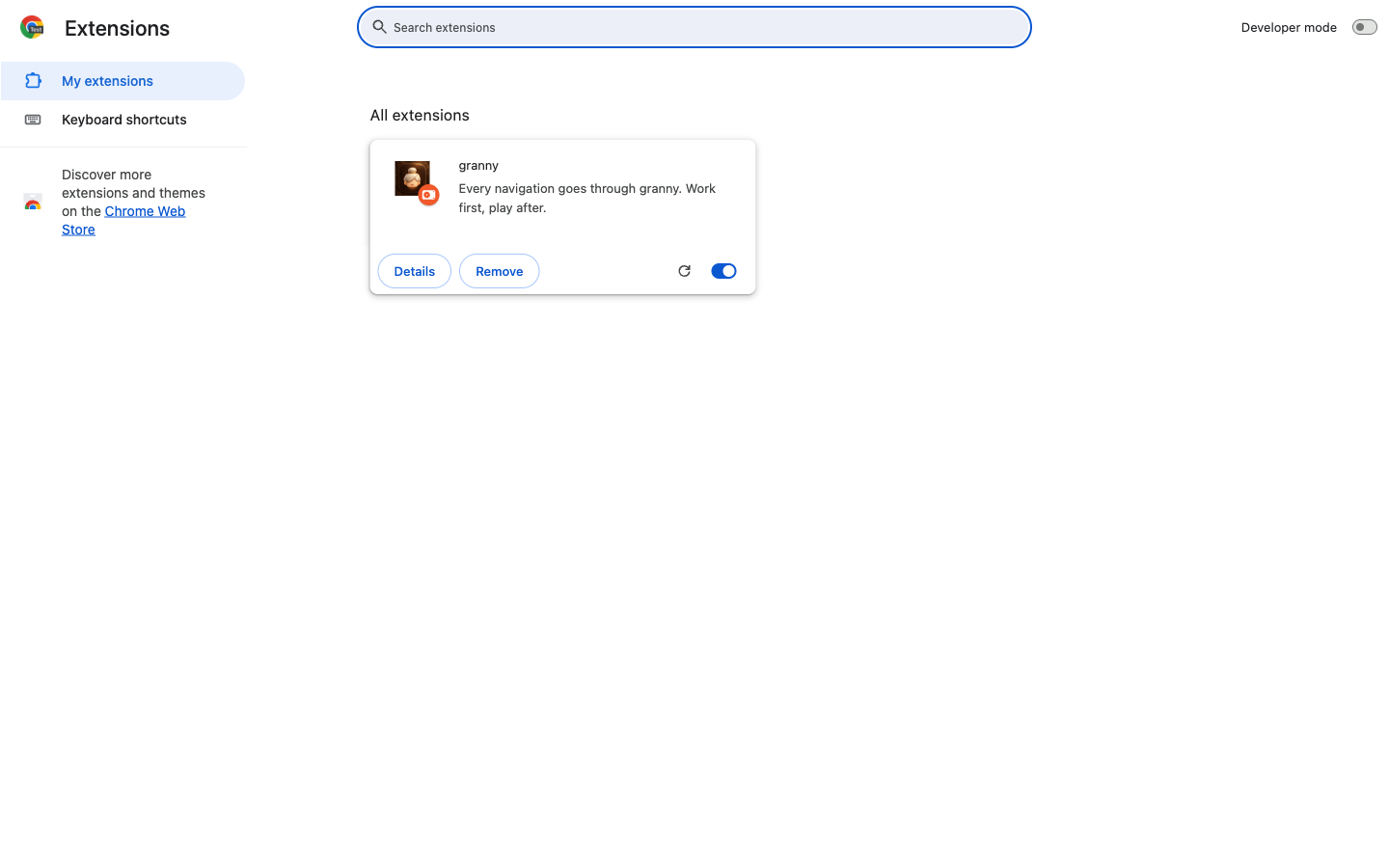
Loaded and on - 6.
Open the extensions menu - the puzzle piece next to the address bar. granny is there; pin it if you want the face on your toolbar.
- 7.
Open a YouTube video. The warning offers Close the tab (red), Continue (yellow), Don’t warn for this domain (green - silence that site for the rest of the day), and a small back arrow. Shorts stay a hard block.
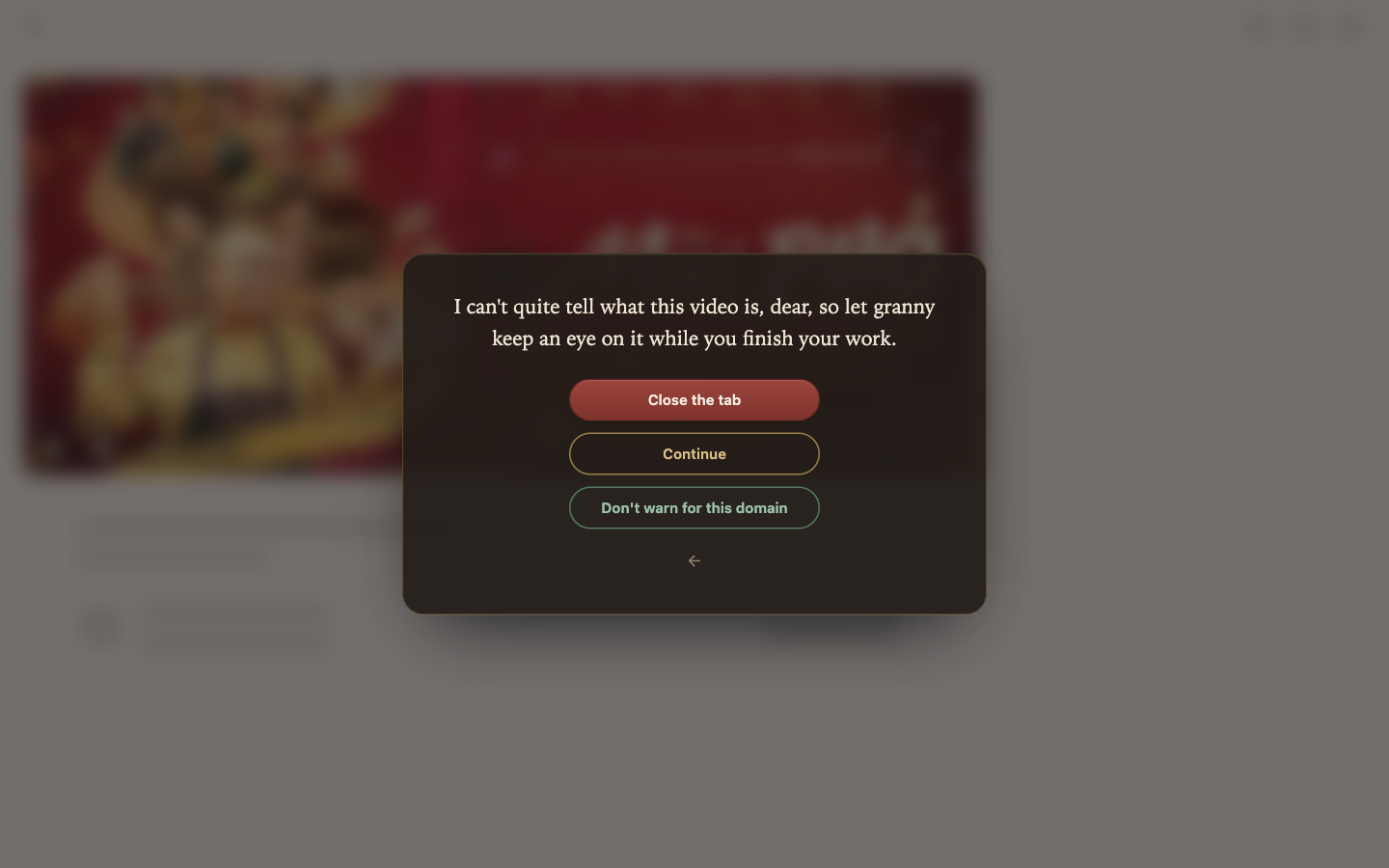
A movie on YouTube gets the negotiable warning
Safari
Safari cannot sideload extensions - Apple’s rule, not granny’s. The Safari build needs the source app signed with your Apple Development team (a free Apple ID is enough).
- 1.
Run
scripts/install-extension.shfrom the source checkout; it builds the Safari app signed with your team and installs it. - 2.
Run granny for Safari once, then open Safari > Settings > Extensions and tick granny.
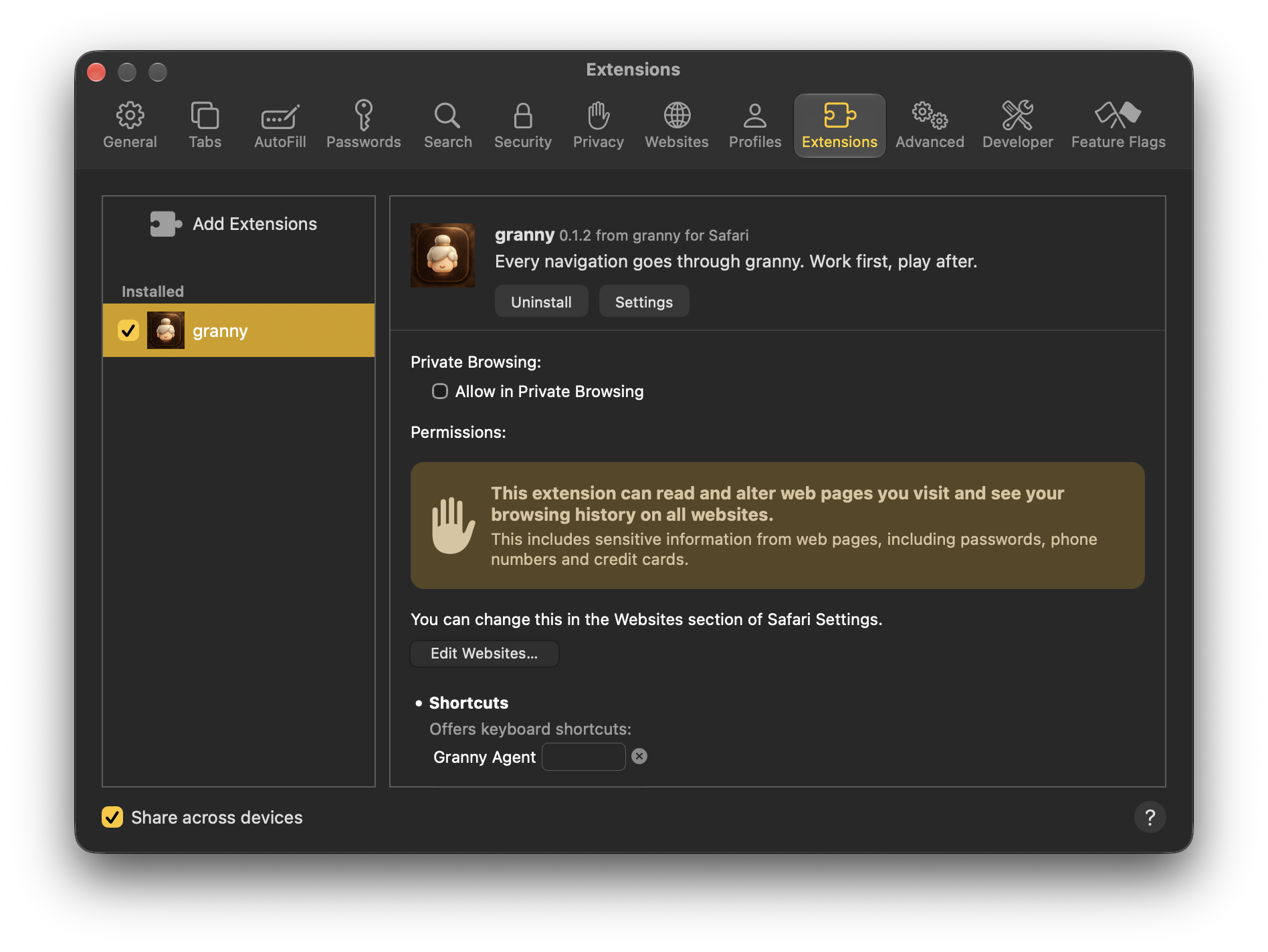
Safari > Settings > Extensions - 3.
When Safari asks for website access, choose Always Allow on Every Website. It lives later in Settings > Websites > granny: For other websites, Allow.

For other websites: Allow - 4.
Open a YouTube video: the same warning, the same choices.
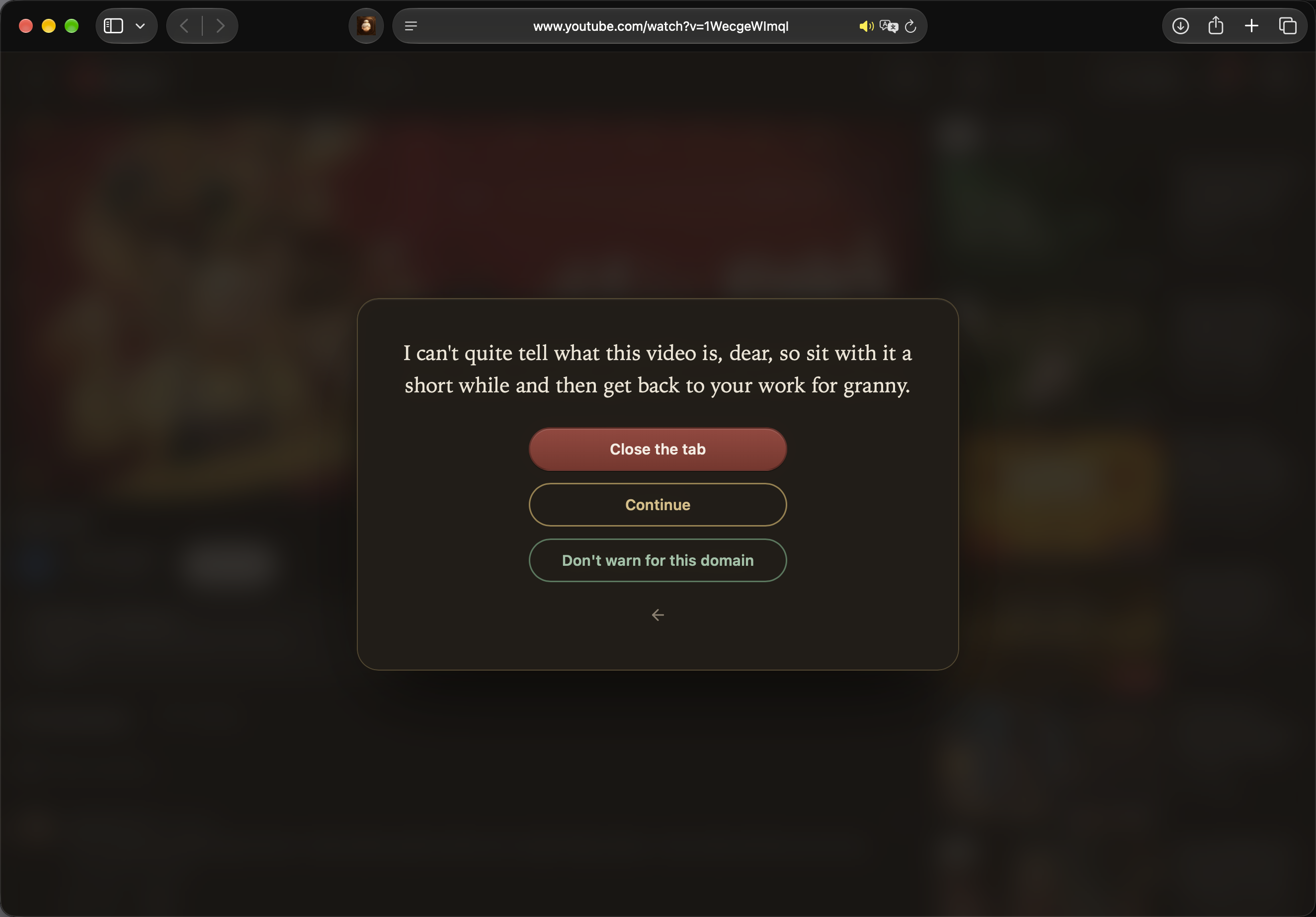
The warning, in Safari
What the extension adds
- Content verdicts
- A movie or vlog on YouTube gets a negotiable warning - Close the tab, Continue, or Don’t warn for this domain (silence that site until the day is over). Feeds get the same. Shorts stay a hard block.
- Without it
- Facebook, Instagram and TikTok die at
/etc/hosts; the tab janitor closes YouTube Shorts and the curated red-flag list; entertainment apps are closed on launch. No content-aware overlays. - Pairing
- The extension finds the app on loopback and fetches its token. Nothing to paste.
- Privacy
- Verdicts are cached on your Mac. Classifier calls happen only if you configured keys.
Not on the Chrome Web Store or the App Store yet. This is the pilot path: when the extension ships on the stores, both browsers will be one click.
Check it works. And when it does not.
- No warning on a video
- Reload the extension (
chrome://extensions-> granny -> Reload). A task’s allowed surfaces can legitimately open a site - check the task list first. - The warning never leaves
- The granny app must be running. Without it the extension fails closed on the hard list only.
- Safari lists no granny
- Safari loads signed extensions only. Build from source and run the app once, then look again in Safari > Settings > Extensions.
- After a granny update
- Use the menu again: it copies the fresh extension to
~/Applications/granny-extension. Then Reload inchrome://extensions.